A digital coach
Successfully provided contextual learning in the workflow to speed up time to answer, reduce distractions, and grow customer confidence when using the product.
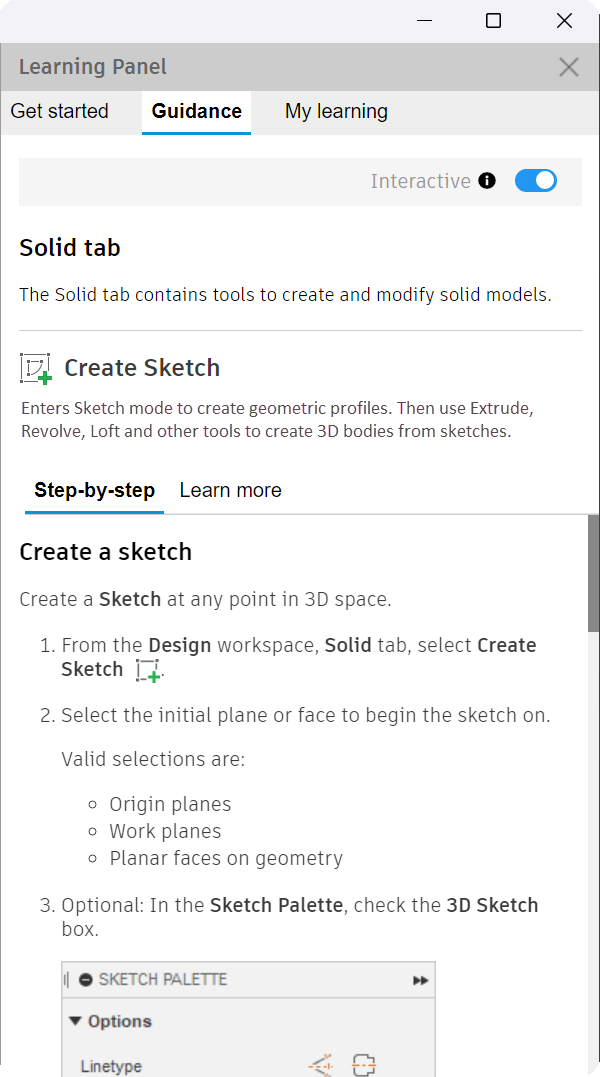
Overview
Usability testing revealed frustration with our product as users struggled to find answers. The UI and separate Help site delayed time-to-answer and added distractions.
Goal
By bringing “the answer” closer to the work area, we aimed to reduce clicks and improve speed. Targeting 10-clicks/1 minute to 8-clicks/40 seconds could ease frustration.
Results
The digital coach enabled answers in 5-clicks/10 seconds—50% fewer clicks, 80% faster. Bonus: We reclaimed 20% screen space and unlocked $2.1M in content ROI.
- Team
- Content Designer (me), Content Engineer, Globalization Engineer, Product Engineer, Researchers (me)
- Timeline
- 6 months
- Tools
- Mural, Figma, Fusion, GitHub
Research
Based on original research and known pain points, I met with our Research team to create a follow-on research plan.
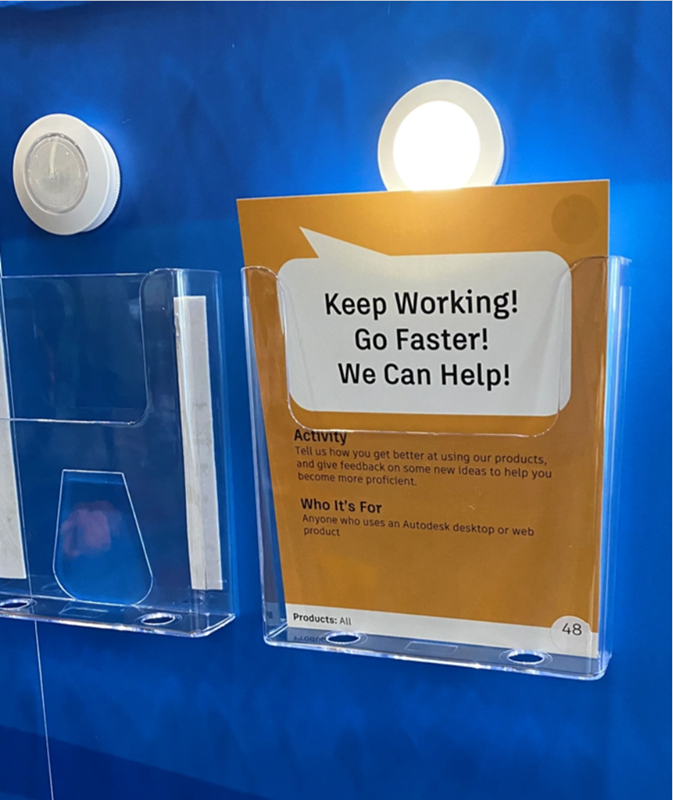
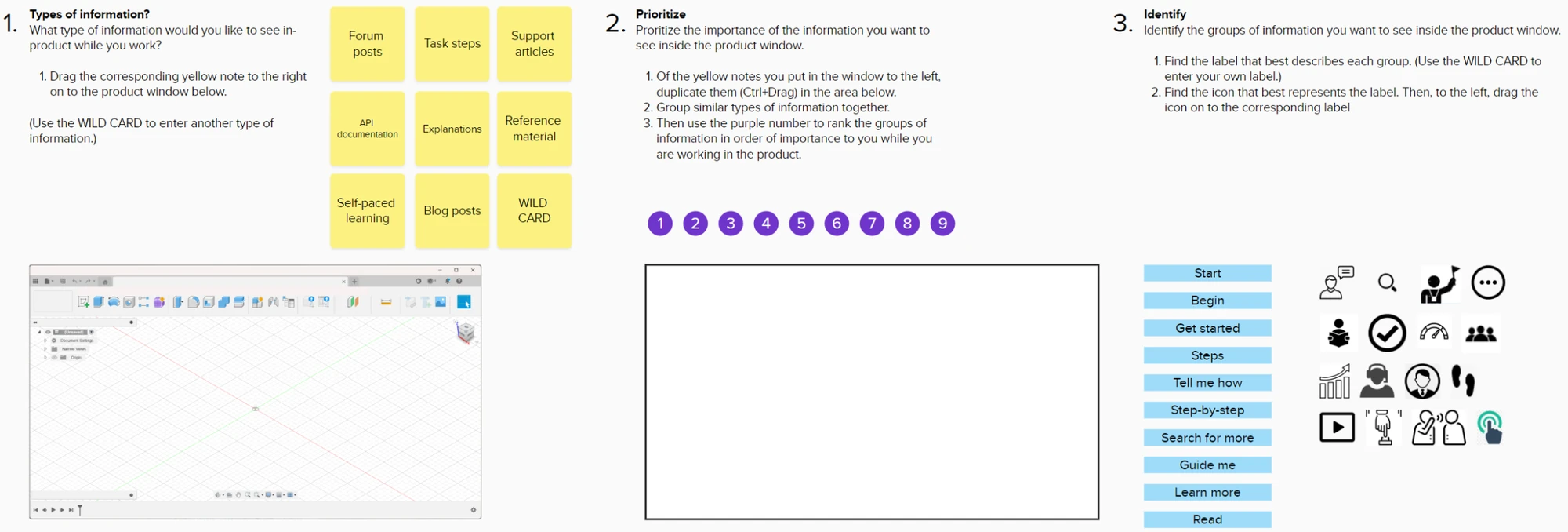
During the sessions, I used a Mural template containing exercises (a card-sort and some dot votes) that could easily be duplicated for each session held at our annual company conference.
Over 9 hours, I held 23 interview sessions, gathering customer input re: the type of information they look for (content objects) while working in the product.
I also asked about:
- The words they used to describe the information (terminology)
- Where they wanted to see the solution in the product (location)
- What iconography they expected to interact with (affordance)
Prototype
Based on the feedback from the customer interviews, I used that research to inform the initial prototype. We decided to design the digital coach as a slide-out panel inside the app, calling it the Learning Panel.
-
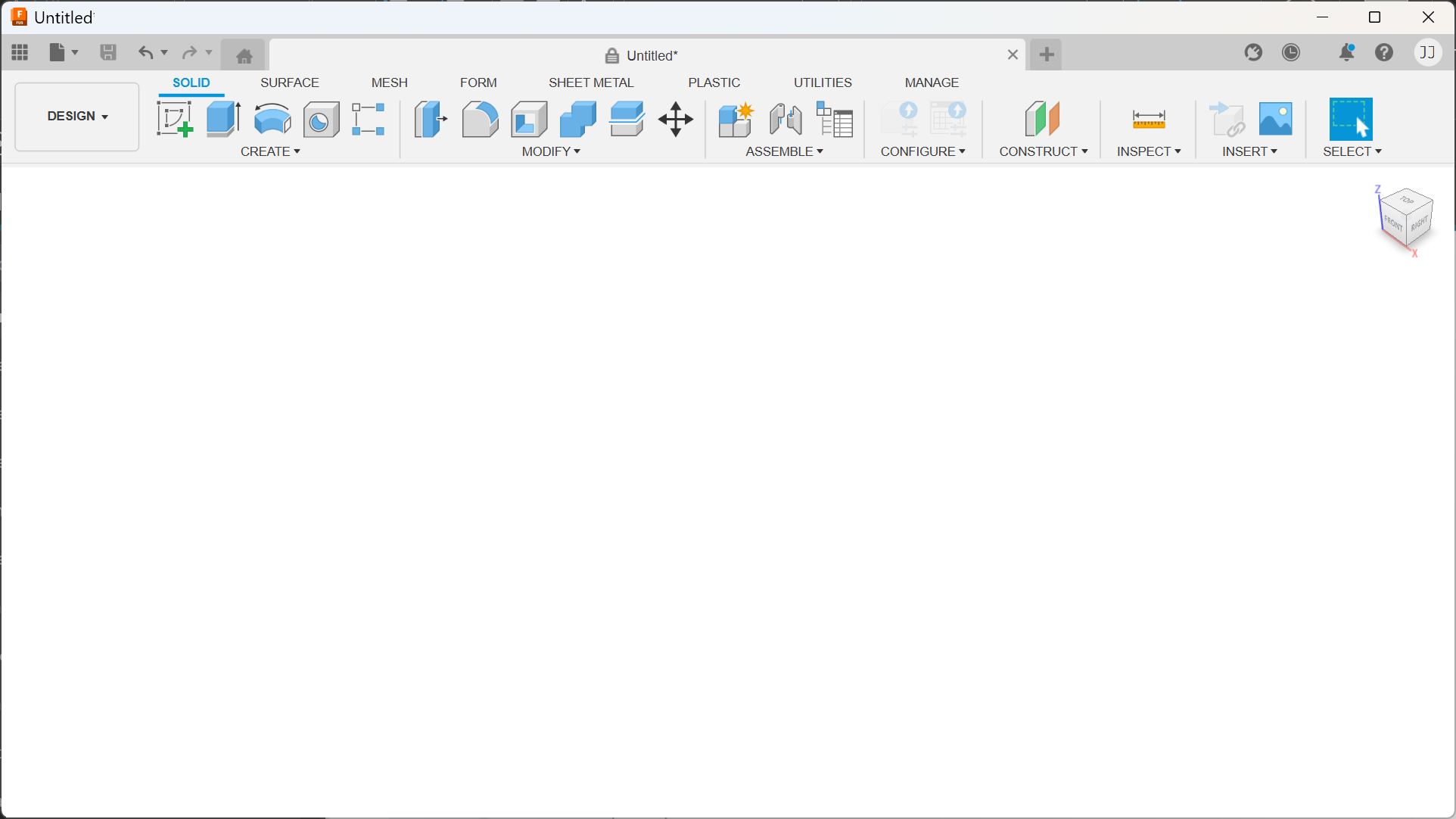
The workspace before the Learning Panel opens. -
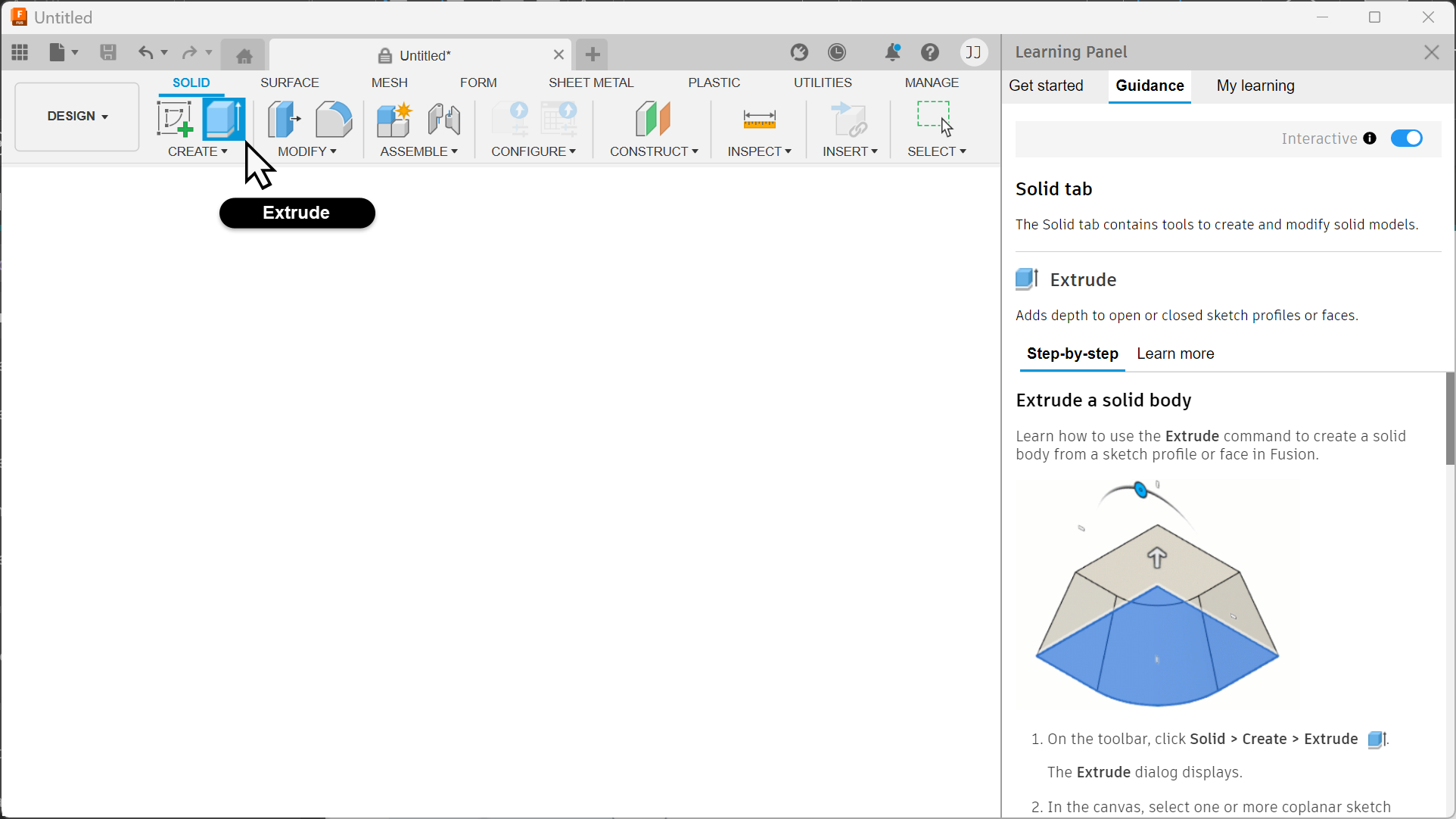
Choosing Extrude opens the panel on that topic. -
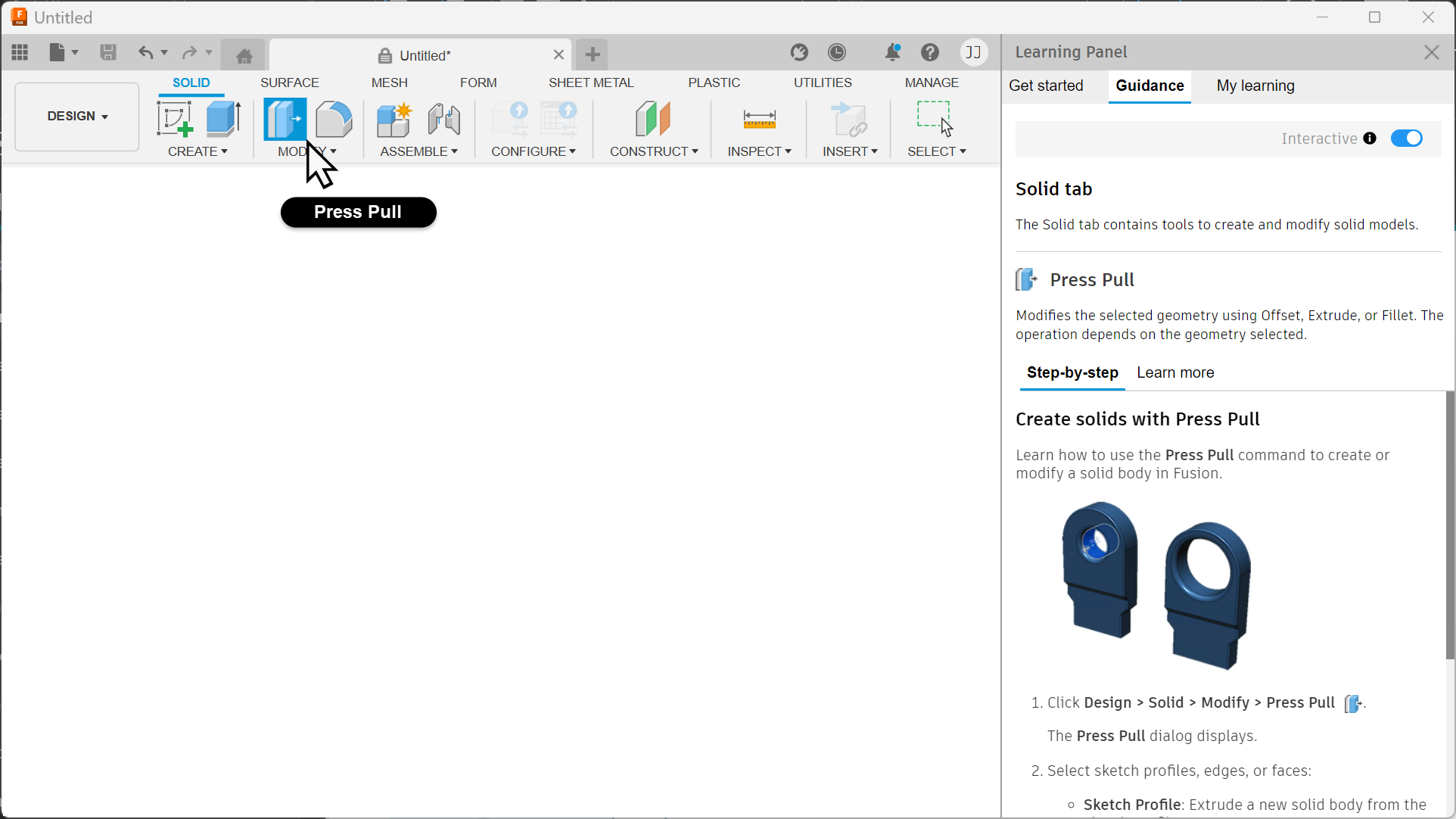
Choosing Press Pull changes the panel to match. -
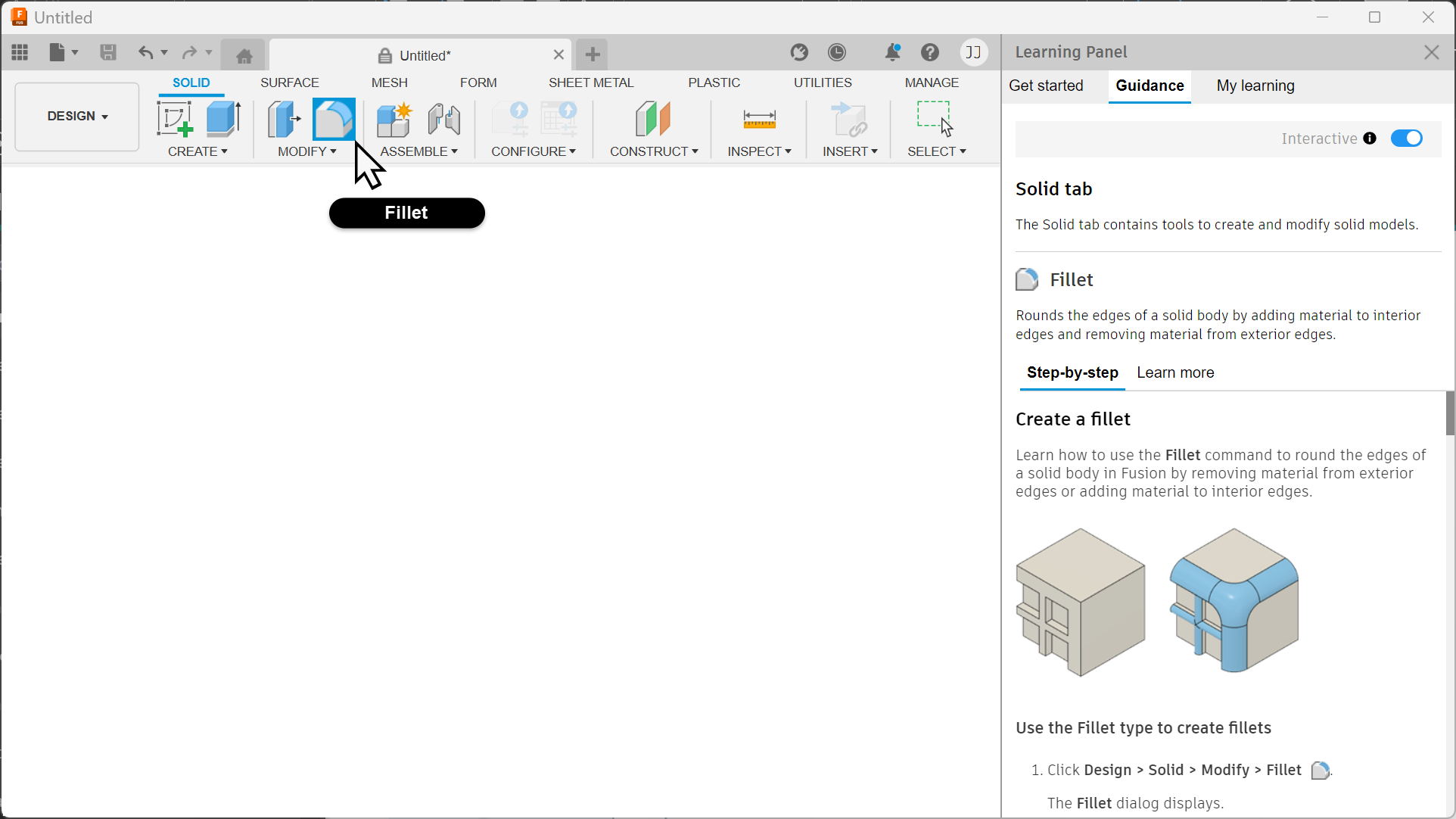
Choosing Fillet shows fillet guidance. -
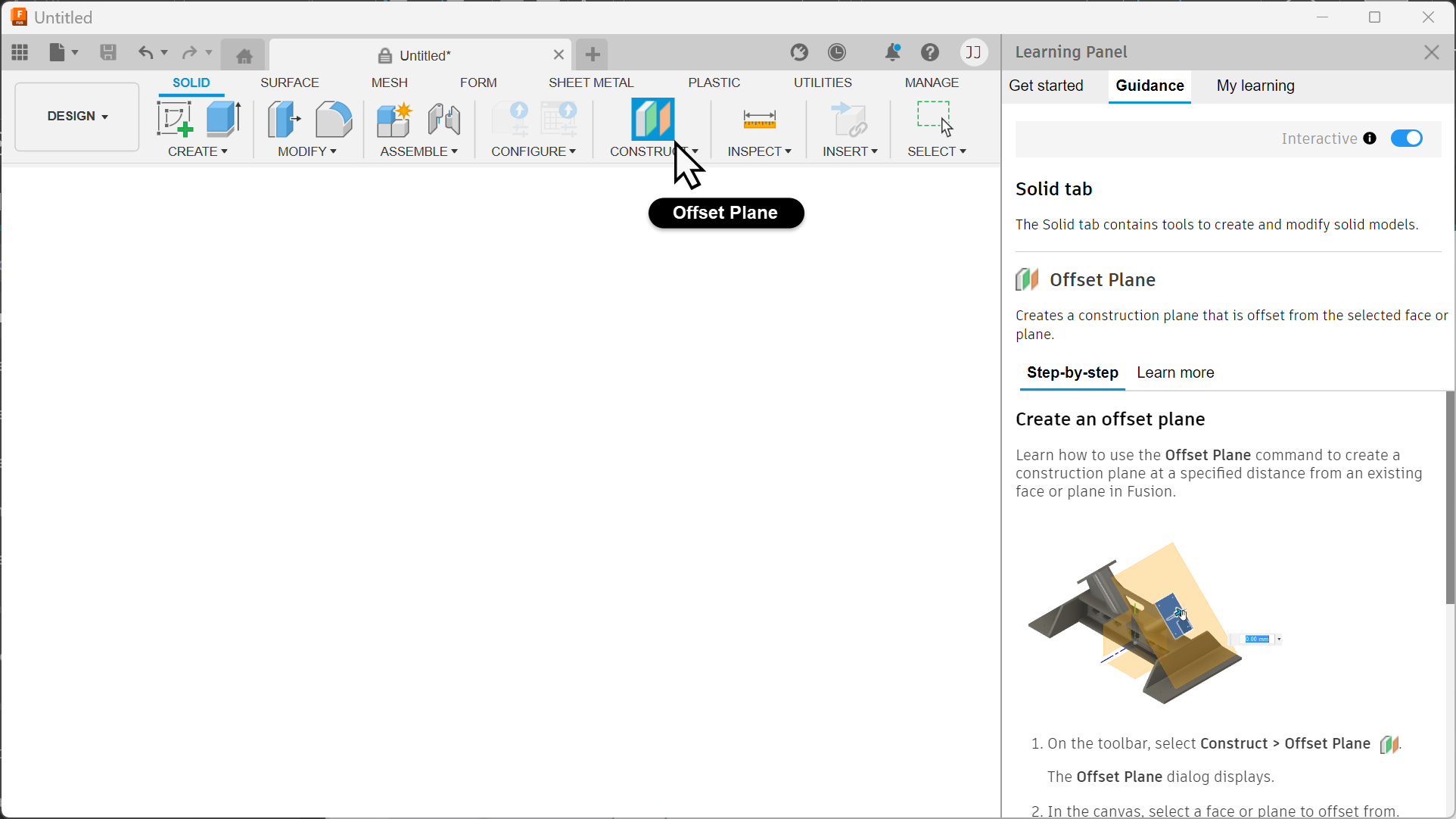
Choosing Offset Plane shows plane guidance.
Develop
I worked with Content and Globalization Engineering teams to better understand the content publishing and delivery processes so I could connect the content to each tool.
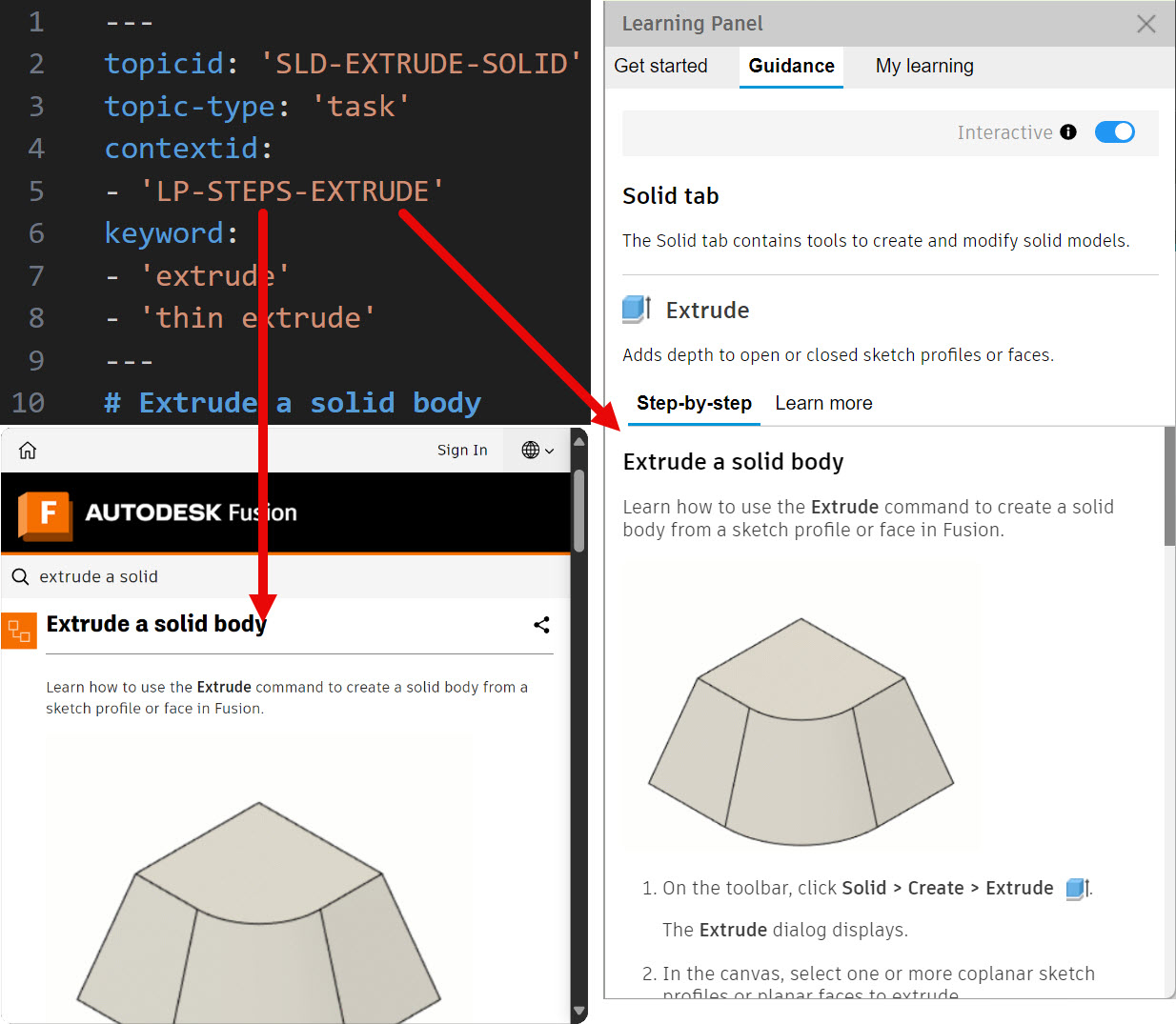
With their input, I then developed a metadata scheme, based on each tool’s unique command ID. For each command ID, I created a unique context ID for its related task and concept topics (task shown). I then inserted the context ID as metadata into the tool’s corresponding topics.
In parallel, the Product Engineer built an API that listened for each tool’s command ID that’s triggered when a customer clicks a tool button. The API “hears” it, and if the Learning Panel is open, calls the related content. The Content Delivery Network delivers the topic to the Learning Panel inside the product. (Task content is shown on the “Step-by-step” tab and conceptual content is shown on the “Learn more” tab.)
If the Learning Panel is closed, the API ignores the command ID. This helped reduce the number of unnecessary API calls.
Test
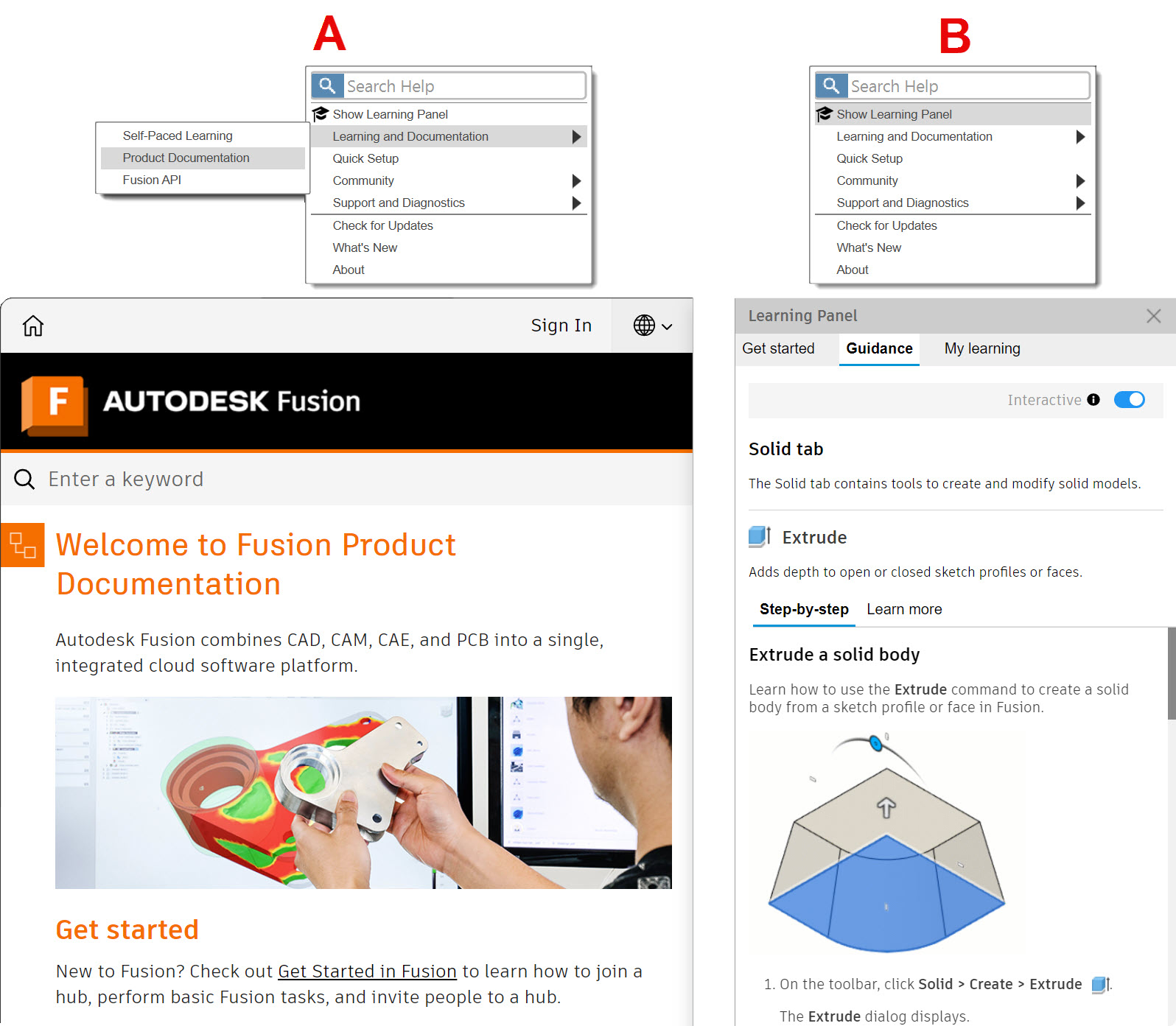
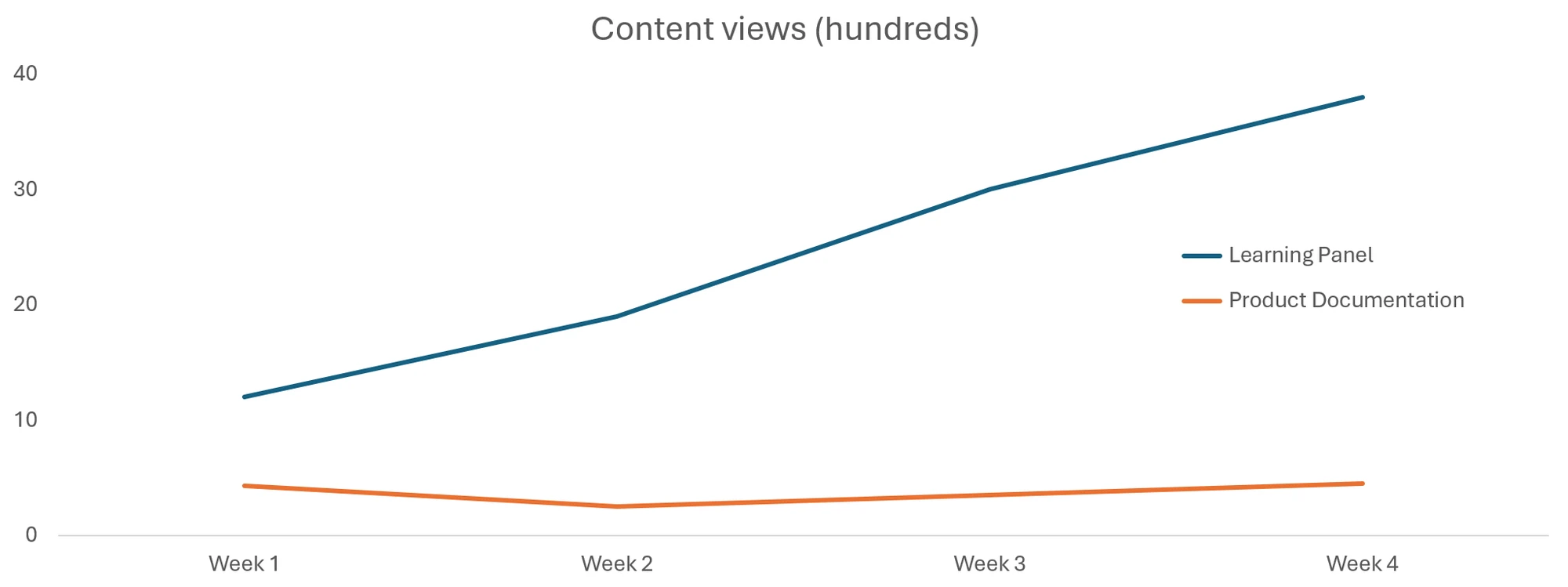
For 1 month, existing users (group A) retained the original Product Documentation access. Visits were relatively flat.
New users (group B) were given access to the Learning Panel using a LaunchDarkly feature flag. Visits showed steady growth.
The Product Engineer also enabled a commenting mechanism to collect feedback, which I monitored for qualitative feedback. The comments were positive.
Iterate
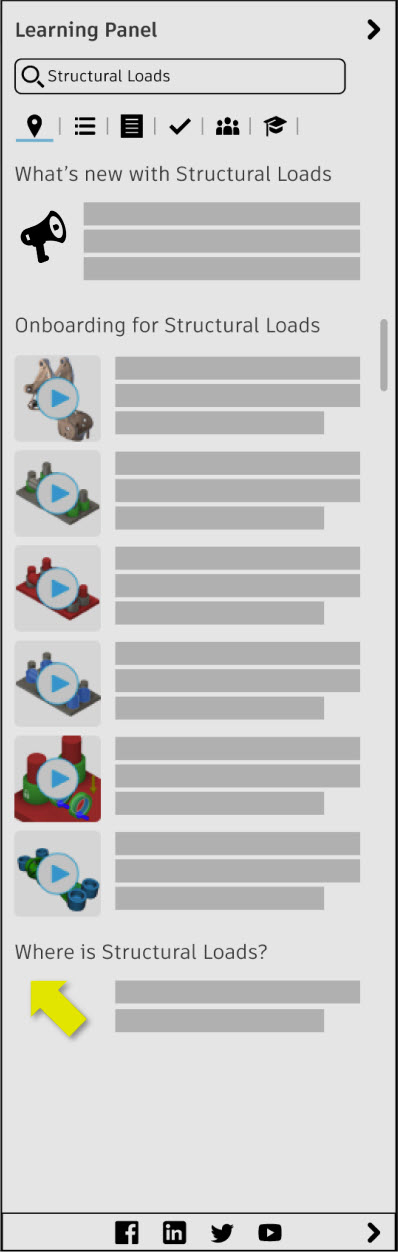
We presented the test data to Product Management. They approved the path to roll out. Part of that decision was to postpone including the additional Learning Panel tabs (shown below) so management could get the other content teams onboard and aligned. All agreed. At this point, I documented my process and turned the Learning Panel project over to the Content Experience Design teams. For this product, the teams connected 2,950 topics to their respective tools.

- 80%+ Faster time to answer
- 50% Fewer clicks
- 2,950 Tools and topics connected
Learnings
- We had to eat the elephant one bite at a time. Preparing the initial batch of product documentation with the proper metadata was quick but it still required chronicling, resources, and training. For scaling the solution, we reviewed tool usage data and prioritized connecting the low-use areas of the product first, to enable us to work out any issues with the least impact on the customer.
- The customers’ positive comments inspired the Content team to rapidly scale and finish tagging existing product documentation. Positivity is a good motivator.
- From a skills perspective, I gained a much better understanding of Figma, GitHub, API calls, and our CDN (Akamai).
- Collaborating with a Product Engineer so closely also helped me better understand his constraints and the way coders talk about content. We can discuss that over a coffee sometime.
Next steps
- The initial Learning Panel only addressed the Moment of Apply, using product documentation from the Content Experience Design team.
- The idea was to include additional tabs in the Learning Panel for the other content creation teams so we could improve the cluttered interface. These teams would cover the other four Moments of Need (New from Marketing, More from Education, Change from Product Management, and Solve from Support). We anticipated this would regain 20% of the canvas area, as the Learning Panel would replace the other affordances.
- The established guidelines, methods, and patterns would enable the other content creators to include their own content within the product in the proper context. I suggested we all use a headless CMS, so the content could be more visible, easily repurposed, and standardized.
- I also planned to experiment with an AI solution for search and tagging, using Retrieval-Augmented Generation (RAG) to provide consistent responses quickly and reliably.